Automation
Workflows
Workflows automate actions based on candidate status and evaluation outcomes. They're the key to scaling your hiring process without manual intervention.
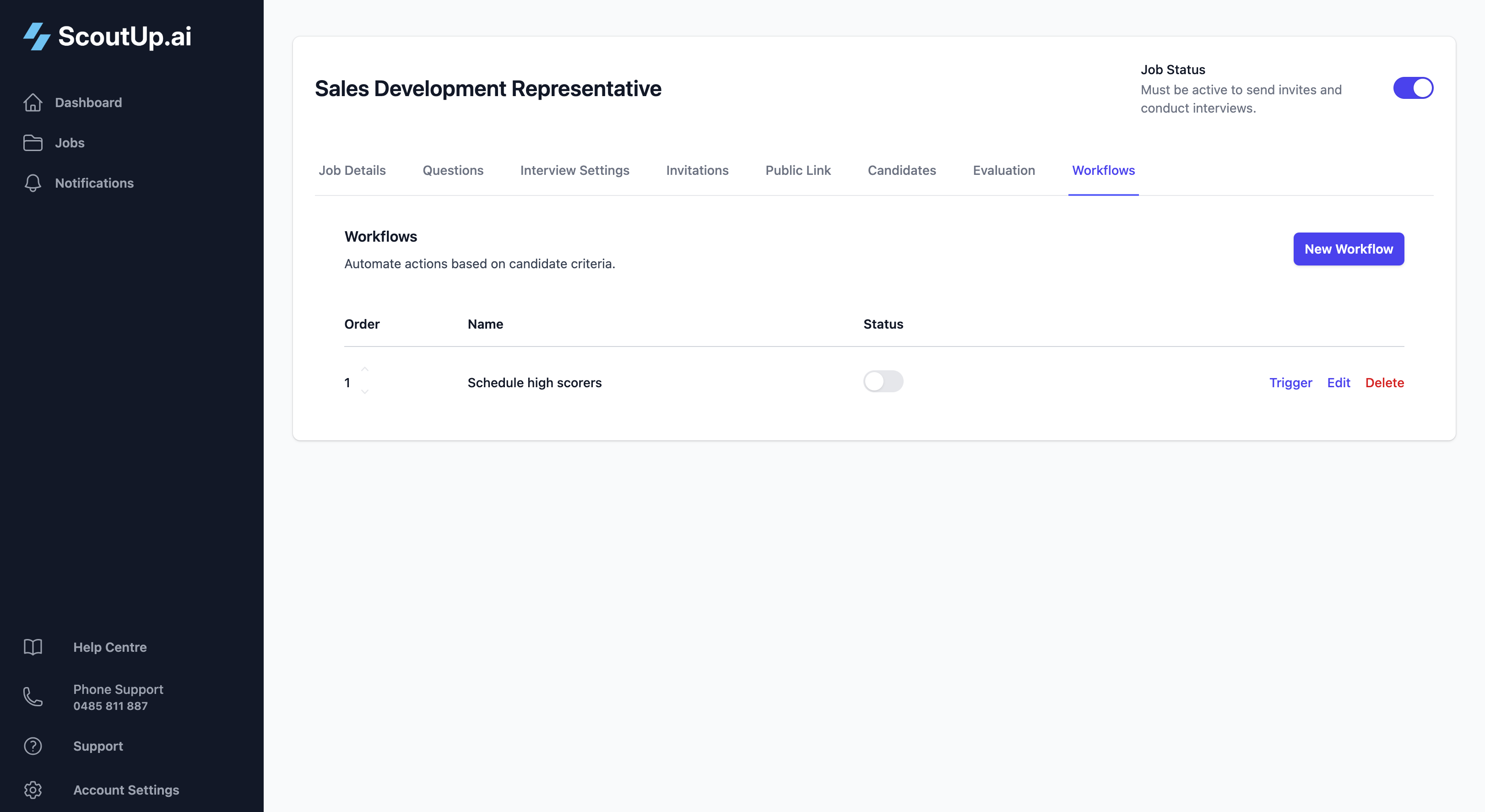
How Workflows Work
Each workflow consists of three parts:
- Conditions: The rules that must be met for the workflow to trigger
- Actions: What happens when conditions are met
- Scope: Which candidates the workflow applies to
Workflows are evaluated automatically when relevant events occur (interview completed, document evaluated, etc.). When all conditions are met, the actions execute.
Creating a Workflow
Click Add Workflow to create a new automation rule.
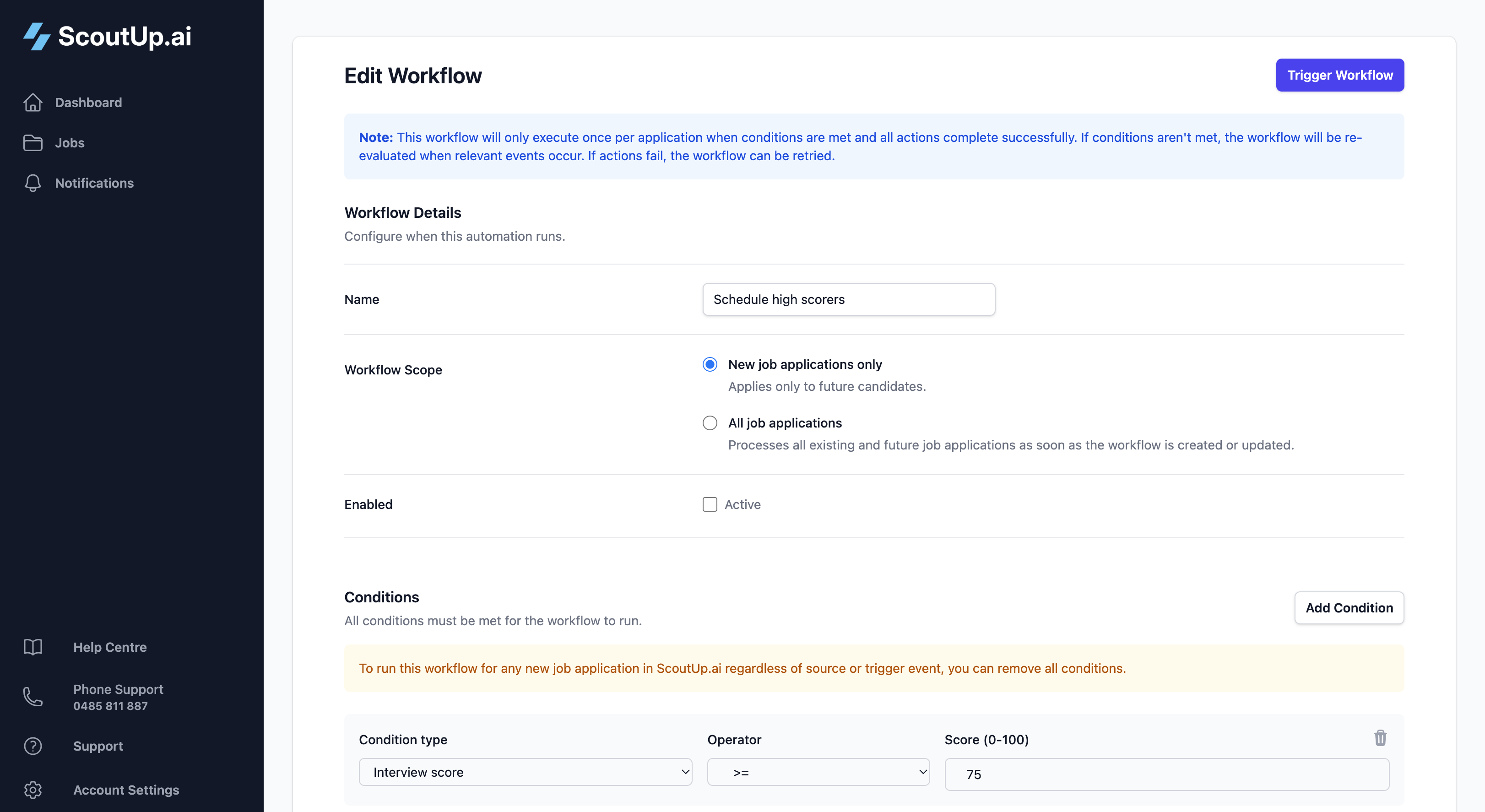
Workflow Name
Give your workflow a descriptive name that explains what it does:
- "Progress high scorers to next stage"
- "Reject knocked out candidates"
- "Send invite when resume passes"
Conditions
Conditions determine when a workflow runs. All conditions must be true for the workflow to execute (AND logic).
Interview Score Conditions
Trigger based on the candidate's interview evaluation score:
| Condition | Description | Example Use |
|---|---|---|
| Minimum Score | Score must be at least X | Progress candidates scoring 80+ |
| Maximum Score | Score must be at most X | Reject candidates scoring below 40 |
| Score Range | Score must be between X and Y | Flag mid-range (50-79) for manual review |
Knockout Conditions
Trigger based on knockout question results:
- Knocked Out: Candidate failed at least one knockout question
- Not Knocked Out: Candidate passed all knockout questions
Document Conditions
Trigger based on document matching and evaluation:
- Document Matches Requirement: A document has been matched to a specific requirement
- Document Evaluation Passes: A document evaluation meets your criteria
Combining Conditions
Add multiple conditions to create sophisticated rules. All conditions must be true:
Example: "Score ≥ 80" AND "Not Knocked Out" AND "Resume Passes Evaluation"
This workflow only runs for candidates who score well, pass all knockout questions, AND have a qualifying resume.
Actions
Actions are what happens when conditions are met. You can add multiple actions to a single workflow.
Communication Actions
- Send SMS Invite: Send an SMS invitation to complete the interview
- Send Email Invite: Send an email invitation
- Send Email Notification: Notify your team about the candidate
JobAdder Actions (if connected)
- Move to Status: Change the candidate's status in JobAdder
- Add Note: Post the evaluation summary as a note on their JobAdder profile
Application Scope
Choose which candidates the workflow applies to:
- All Applications: Runs for every candidate
- Excluding Test Applications: Skips test candidates (recommended for production workflows)
Important: Workflows set to "All Applications" will trigger for new candidates as soon as they meet conditions. Be careful when adding document criteria to these workflows, as they may execute for existing candidates.
Workflow Order
Workflows are evaluated from top to bottom. Use the up and down arrows to reorder them.
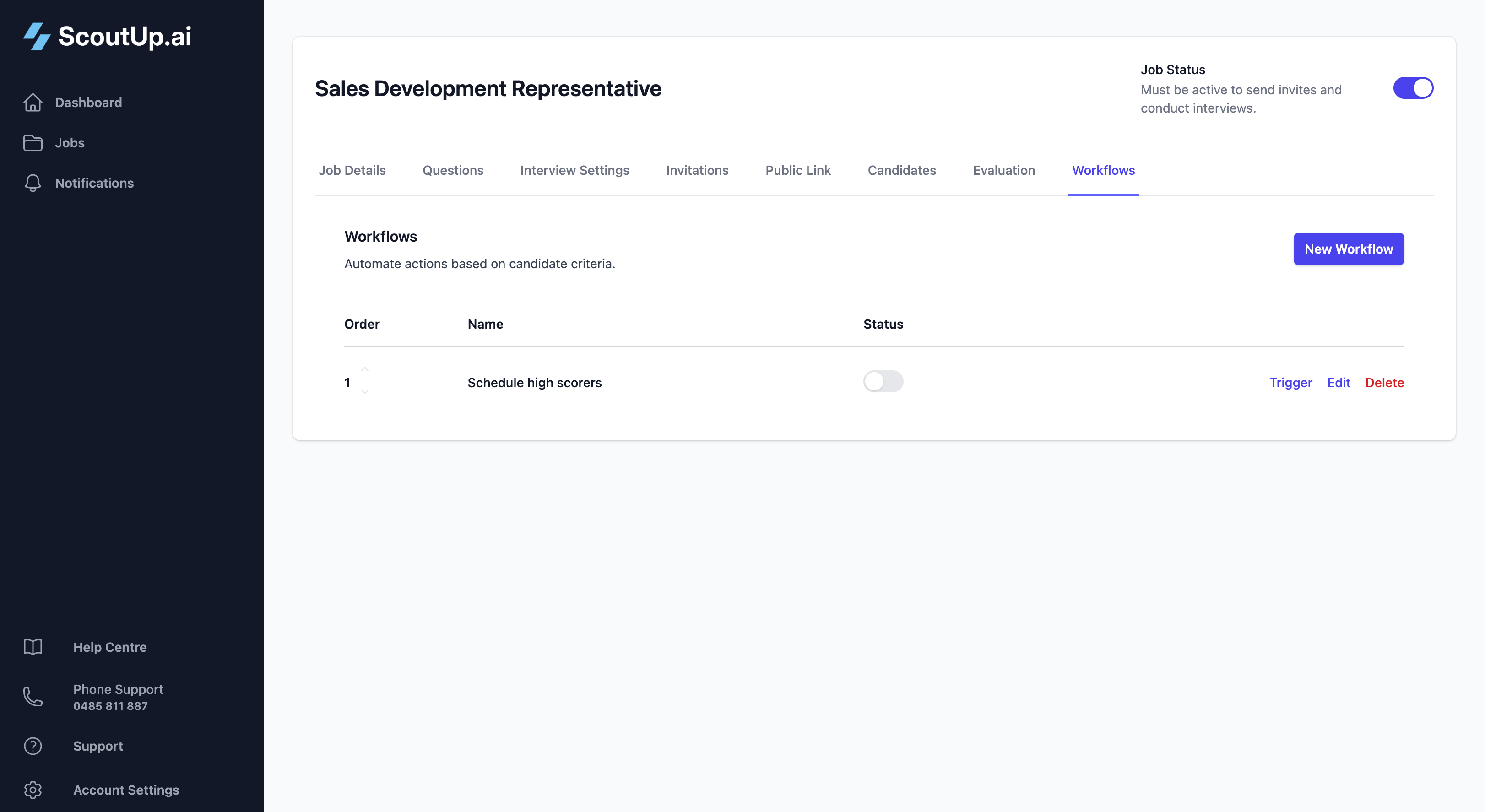
Example order:
- Reject knocked out: Knockout = true → Move to Rejected
- Progress high scorers: Score ≥ 80 → Move to Interview
- Hold for review: Score 50-79 → Add note for manual review
- Reject low scorers: Score < 50 → Move to Rejected
Put your most specific or important rules first. A candidate can match multiple workflows, and each will execute if conditions are met.
Enabling and Disabling
Toggle workflows on or off without deleting them. Disabled workflows are skipped during evaluation.
The status toggle appears in the workflow list - switch it on to enable the workflow.
This is useful for:
- Temporarily pausing automation
- Testing new workflows before enabling
- Keeping workflow configurations for future use
Example Workflows
High-Volume Screening Pipeline
A typical automated pipeline might include:
| Workflow | Conditions | Actions |
|---|---|---|
| Send invite on resume pass | Resume matches requirement + Resume evaluation passes | Send SMS Invite |
| Reject knockout | Knocked out = true | Move to Rejected + Add Note |
| Fast-track stars | Score ≥ 90 | Move to Final Interview + Send Email to Team |
| Standard progress | Score 70-89 + Not knocked out | Move to Second Round |
| Reject low scores | Score < 50 | Move to Rejected |
Tips for Effective Workflows
- Start simple: Begin with basic score-based workflows and add complexity as needed
- Test with test candidates: Run through the full flow before going live
- Use descriptive names: Make it clear what each workflow does
- Consider edge cases: What happens to candidates who don't match any workflow?
- Monitor execution: Check workflow execution logs to ensure they're running as expected
- Iterate: Review outcomes and refine your thresholds based on real results