Evaluation
Document Evaluations
Document evaluations let the AI analyse candidate documents (like resumes, certifications, or portfolios) against specific criteria before or alongside phone interviews.
How Document Evaluation Works
Document evaluation is a two-step process:
- Document Requirements: Define what documents you need from candidates (e.g., "Resume", "Drivers Licence")
- Evaluation Criteria: Define how to evaluate each document type
When a candidate submits a document, ScoutUp automatically matches it to the appropriate requirement and evaluates it against your criteria.
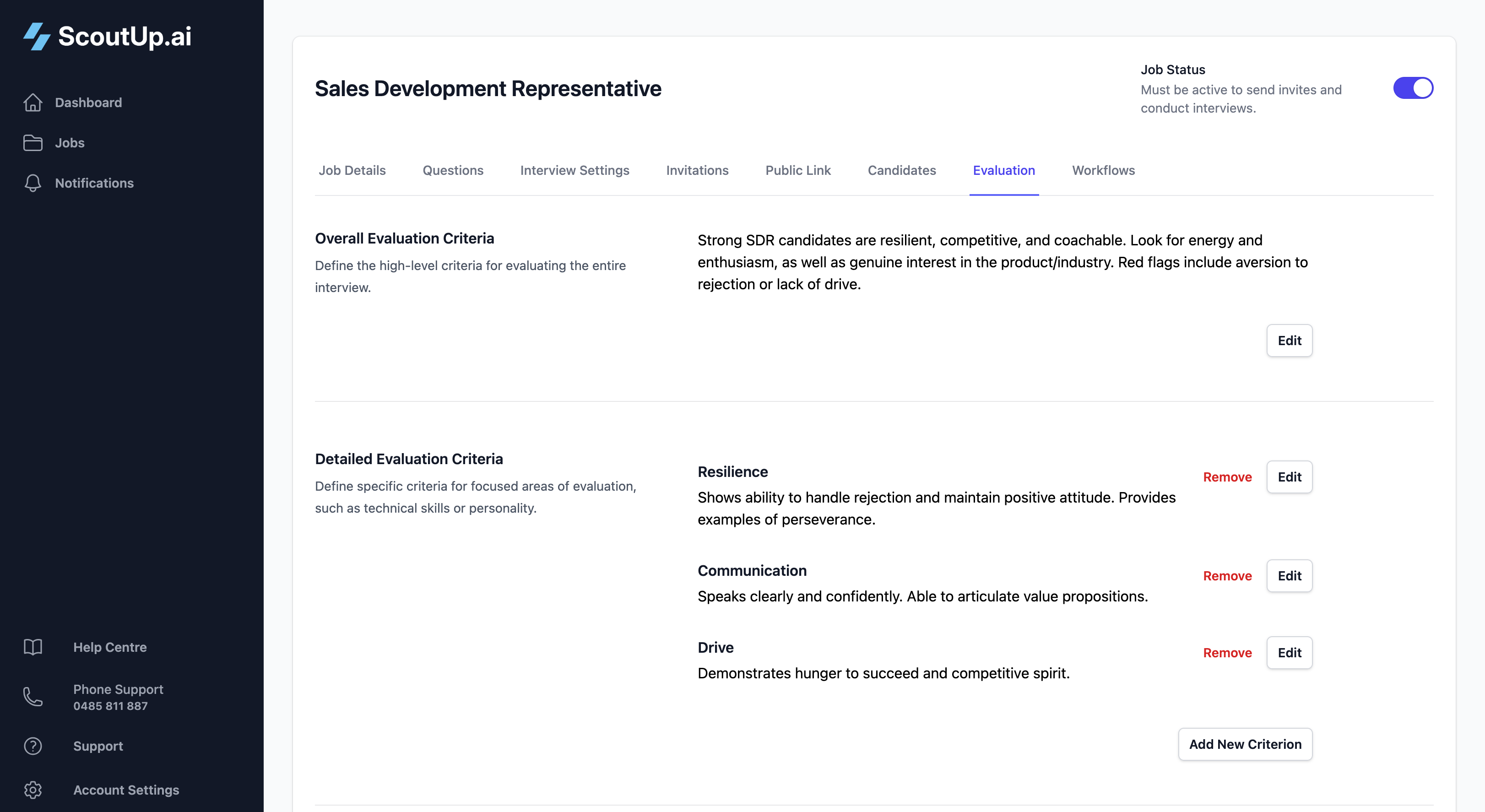
Part 1: Setting Up Document Requirements
Adding a Document Requirement
In the Evaluation tab, scroll to the Document Requirements section and click Add Document Requirement.
Requirement Name
Give the requirement a clear name that describes what you're asking for. Examples:
- Resume / CV
- Driver's Licence
- Proof of Right to Work
- Portfolio
- Certification (specify which)
Required vs Optional
Mark a document as Required if candidates must submit it. Optional documents are nice-to-have but won't block candidates who don't provide them.
Adding Evaluation Criteria
Each document requirement can have multiple evaluation criteria. Click Add Criterion to define what the AI should look for.
Each criterion has:
- Name: A short label (e.g., "Relevant Experience", "Education Level")
- Criteria: Detailed instructions for how to evaluate
Example criteria for a Resume requirement:
| Criterion Name | Evaluation Criteria |
|---|---|
| Years of Experience | Count total years of relevant experience in similar roles. Score higher for 5+ years, medium for 2-5 years, lower for under 2 years. |
| Technical Skills | Check for required skills: Python, SQL, and cloud platforms (AWS/GCP/Azure). Score based on how many are present and depth of experience shown. |
| Career Progression | Look for upward career movement, increasing responsibilities, and consistent employment. Flag frequent job changes (less than 1 year each) or unexplained gaps. |
Part 2: How Documents Are Matched
When candidates submit documents (via public application link, manual upload, or JobAdder sync), ScoutUp automatically:
- Analyses the document: Reads the content and determines what type of document it is
- Matches to requirement: Associates the document with the appropriate requirement (e.g., a resume PDF matches to your "Resume" requirement)
- Queues for evaluation: Once matched, the document can be evaluated against your criteria
Match Status
Each document shows a match status:
| Status | Meaning |
|---|---|
| Matched | Document successfully matched to a requirement |
| No Match Found | Document analysed but didn't match any requirement |
| Evaluation Pending | Waiting to be processed |
Manual Mapping
If automatic matching doesn't work correctly, you can manually assign a document to a requirement using the dropdown next to each document.
Part 3: Running Document Evaluations
Bulk Evaluation
The most common way to run document evaluations is in bulk:
- Select candidates using checkboxes in the Candidates tab
- Click the Evaluate button
- Check the document requirements you want to evaluate
- Click Run Selected Evaluations
Automatic Evaluation
Use Workflows to automatically evaluate documents when they're submitted. You can set up conditions like:
- When a document is uploaded → evaluate it
- When a resume matches the Resume requirement AND passes evaluation → send interview invite
Part 4: Reviewing Document Evaluation Results
Candidate List View
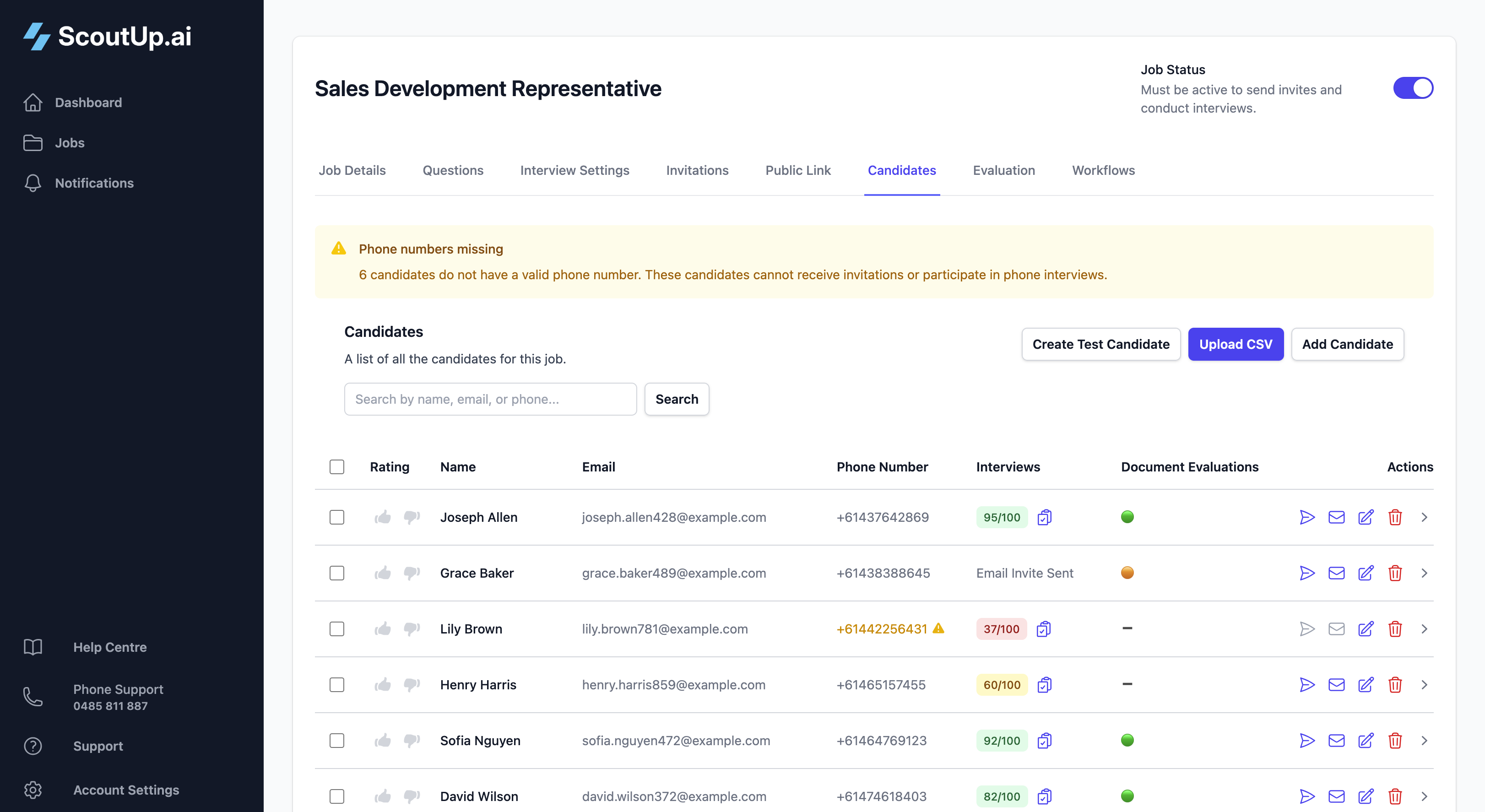
The Candidates tab shows a Document Evaluations column summarising each candidate's document status:
- Which requirements have matched documents
- Evaluation scores for each criterion
- Pass/fail indicators
Individual Candidate View
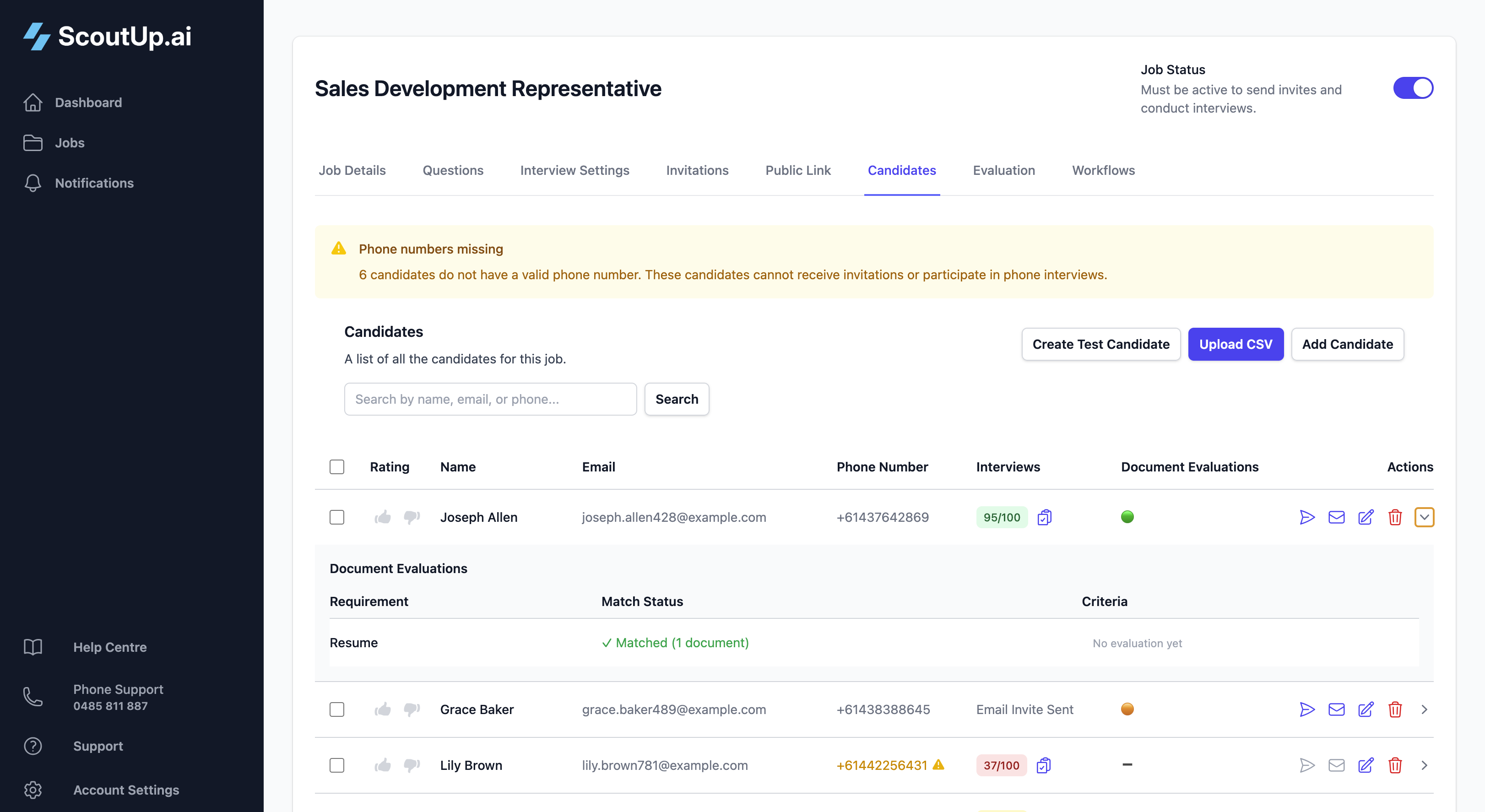
Click on a candidate to see their full document details. The Documents section shows:
- All uploaded documents with preview/download links
- Which requirement each document is matched to
- Evaluation results for each criterion
Document Evaluation Details
For each evaluated document, you can see:
- Criterion Scores: Individual scores and pass/fail for each criterion
- AI Reasoning: Explanation of why each score was given
- Extracted Information: Key details the AI identified in the document
Combining Document and Interview Evaluations
Document evaluation works alongside interview evaluation to give you a complete picture of each candidate. A typical flow might be:
- Candidate applies via public link, uploading their resume
- Resume is automatically matched and evaluated
- If resume passes criteria, workflow sends interview invitation
- Candidate completes interview, which is then evaluated
- If interview score is high, workflow progresses them to next stage
This creates a fully automated screening pipeline that only surfaces the best candidates for your manual review.
Tips for Document Evaluation
- Be specific about what you're looking for: "5+ years of Python experience" is better than "good technical skills"
- Consider deal-breakers: Use criteria to flag must-have qualifications or certifications
- Test with sample documents: Upload a few resumes and run evaluations to calibrate your criteria
- Combine with workflows: Automate the progression of candidates who pass document screening